Quick Facts
- Category: Software Tools
- Published: 2026-05-21 09:56:43
- Debunking Common Rooftop Solar Misconceptions: What Homeowners Need to Know
- Kalshi Secures $1 Billion Funding Round, Valuation Hits $22 Billion
- Why Domain Expertise Remains Critical in the Age of AI-Assisted Development
- Navigating Oil Investments During Geopolitical Turmoil: Why Midstream Stocks Like Energy Transfer Stand Out
- Building Self-Improving AI: A Practical Guide to MIT's SEAL Framework
Introduction to BleachBit's TUI
System cleanup utilities are a personal choice for many computer users. On Linux, a variety of tools exist to handle tasks ranging from clearing browser caches and old package archives to securely shredding files and wiping free disk space. These utilities range from simple command-line scripts to full graphical applications. Some focus exclusively on browser data, while others delve deeper into system logs, package caches, and temporary files.
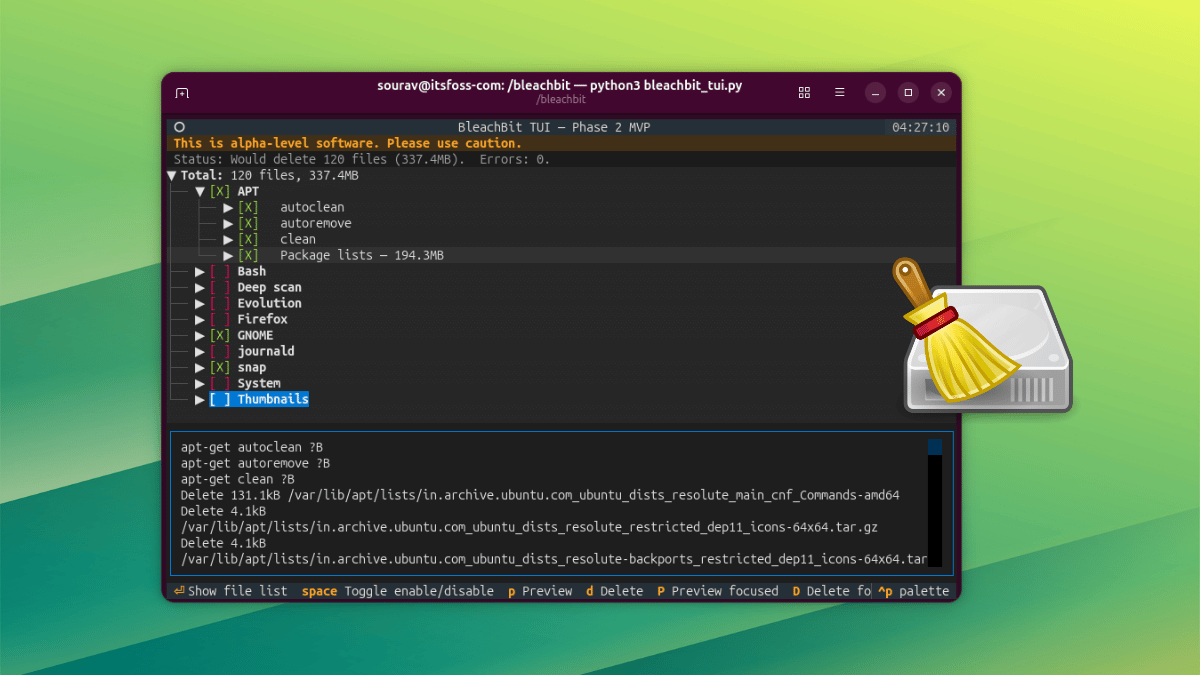
Among the more popular options is BleachBit, a free and open-source system cleaner for both Linux and Windows. Its developers have now given the community an early peek at a new text-based user interface (TUI). This interface aims to bridge the gap between the simplicity of a command-line tool and the visual richness of a full GUI. I took it for a spin to see how it performs in its early alpha state.
Navigating the Interface
The TUI is designed for simplicity and keyboard-driven navigation. To toggle cleaning options on or off, you simply press the Space bar. Hitting Enter expands a category to reveal the underlying list of files that will be cleaned. This makes it easy to drill down into specific areas without overwhelming the user.
The interface includes two distinct preview options:
- Lowercase 'p' – runs a full preview of all selected items, showing exactly what will be cleaned.
- Uppercase 'P' – previews only the currently focused component, allowing for a more granular check.
You can achieve uppercase input either by holding Shift or by enabling Caps Lock.
Previewing and Cleaning
Once you're satisfied with your selections, you can proceed to clean. Pressing d deletes everything that is currently selected, while D deletes only the focused component. On my first attempt, the deletion operation failed because I hadn't launched the TUI with elevated privileges. After relaunching with sudo python3 bleachbit_tui.py, the issue was resolved.
When deletion begins, you must confirm the action by pressing Y. Upon completion, a dialog appears in the bottom-right corner of the interface, displaying the number of files deleted and the amount of disk space recovered. This feedback is clear and immediate.
Additional Features: Palette Menu and More
The TUI also includes a palette menu, accessible via Ctrl+P. From this menu, you can perform several actions:

- Search for specific commands.
- Maximize a selected component for a bigger view.
- Quit BleachBit.
- Save a screenshot of the current TUI state.
- Open a help side panel that lists all keyboard shortcuts.
Because the TUI shares its backend with the regular BleachBit GUI, it automatically inherits all your existing settings. This includes your selected cleaning options, keep list, custom cleaning list, and cookie keep list. There's no need to reconfigure everything.
Display Themes and Input
Users can change the display theme to suit their preferences. The TUI also supports a mix of keyboard navigation and mouse interaction, including the scroll wheel. This makes it versatile for different workflows.
Cross-Platform Availability
On Windows, the TUI is distributed both as an installer and a portable package. Notably, it is compiled as a native 64-bit binary, in contrast to the 32-bit builds used for the stable GUI and CLI versions. For Linux users, the official announcement provides quick-start instructions for running the TUI on Ubuntu. If that doesn't fit your distribution, you can build it from source.
Important Considerations: Alpha Status
Keep in mind that this is still a work in progress. The TUI is in an early alpha stage, meaning bugs and incomplete features are to be expected. If you decide to test it, be prepared for things that may break. However, for those who enjoy living on the cutting edge, this TUI offers a promising glimpse into the future of BleachBit's interface.
Jump to navigation details | Jump to cleaning instructions | Jump to palette menu | Jump to display settings | Jump to availability